
How to add Configure to ChatGPT, Claude, Gemini and more
Pick your assistant. Each one takes a couple of minutes, and the steps show the real screens.
Configure · · 6 min read
In short
- ChatGPT and Claude list Configure Memory in their own directories, so you add it with one button.
- Gemini, Grok and Perplexity take Configure as a custom connector. You paste one address, https://connect.configure.dev.
- Muse has no box for an address, so you send it a message asking it to connect.
- Once an assistant is connected, ask it to save what it knows about you. Every assistant you connect after that can read it.
To add Configure to an AI assistant, open the assistant’s connector settings and add Configure there. ChatGPT and Claude list it in their own directories. Gemini, Grok and Perplexity take it as a custom connector, where you paste one address. Muse connects when you send it that address in a message. Each takes a couple of minutes, and the steps for each assistant are below.
Which assistant do you want to connect?
Pick one to jump to its steps. We build Configure, which is infrastructure for connecting agents, apps, and chats. Connect two assistants and they share one memory that belongs to you.
 Any other assistant
 How do you add Configure to ChatGPT?
ChatGPT lists Configure Memory as a plugin, so there is no address to paste.
- Open Configure Memory in ChatGPT
Configure Memory is a plugin in ChatGPT. Open its page and press Install plugin.
Start now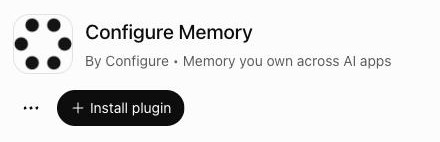
- Sign in and approve
ChatGPT sends you to Configure. Enter your phone number and the code you are sent, then approve access.
- Use it
Ask ChatGPT to save what it knows about you. Any assistant you connect after that can read it.
Save what you know about me to Configure.
 How do you add Configure to Claude?
Claude lists Configure Memory in its connector directory. It works on every Claude plan.
- Open Configure Memory in Claude’s directory
Press Add to Claude. Inside Claude you can also find it under Customize, then Connectors.
Start now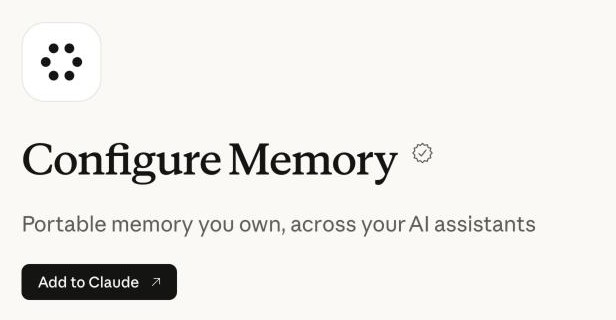
- Sign in and approve
Claude sends you to Configure. Enter your phone number and the code you are sent, then approve access.
- Use it
Ask Claude to save what it knows about you. Any assistant you connect after that can read it.
Save what you know about me to Configure.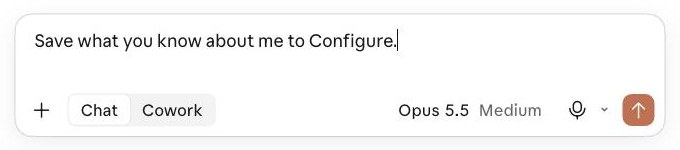
 How do you add Configure to Gemini?
Gemini takes Configure as a custom app. Google offers custom apps on personal accounts in the US, in English, and you add one from a computer.
- Copy this address
https://connect .configure.dev - Paste it into a custom connector
On a computer, open Gemini’s Settings, then Connected Apps, and choose Add a custom app. Paste the address and press Next. Google offers this on personal accounts in the US, in English. Google’s steps.
Start now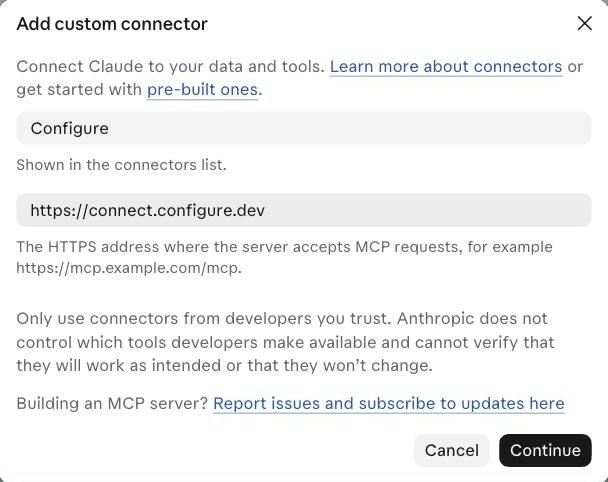 This is the box in Claude. The one in Gemini asks for the same two things.
- Sign in and approve
Gemini sends you to Configure. Enter your phone number and the code you are sent, then approve access.
- Use it
Ask Gemini to save what it knows about you. Any assistant you connect after that can read it.
Save what you know about me to Configure.
 How do you add Configure to Grok?
Grok takes Configure as a custom connector. The button for it sits at the bottom of Grok’s list of apps.
- Copy this address
https://connect .configure.dev - Paste it into a custom connector
Go to grok.com/connectors and choose Add a custom connector at the bottom of the list. Enter a name, paste the address as the Server URL, and press Add MCP. xAI’s steps.
Start now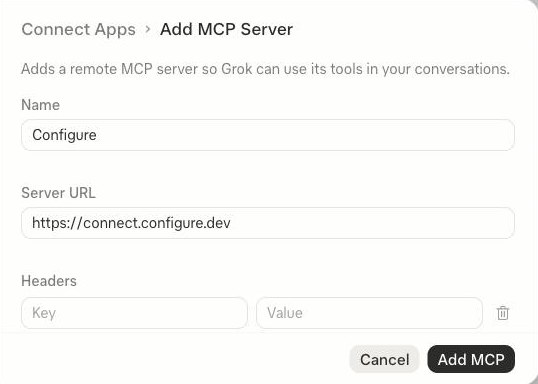
- Sign in and approve
Grok sends you to Configure. Enter your phone number and the code you are sent, then approve access.
- Use it
Ask Grok to save what it knows about you. Any assistant you connect after that can read it.
Save what you know about me to Configure.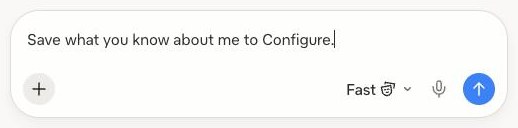
 How do you add Configure to Perplexity?
Perplexity takes Configure as a custom connector, added from its Plugins page. The free plan does not show the option.
- Copy this address
https://connect .configure.dev - Paste it into a custom connector
Open Plugins, choose Add custom, then Add MCP connector, then Remote. Paste the address as the server URL. Perplexity’s free plan does not show this option. Perplexity’s steps.
Start now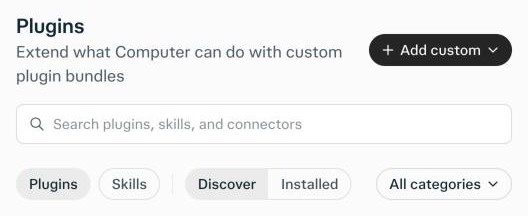
- Sign in and approve
Perplexity sends you to Configure. Enter your phone number and the code you are sent, then approve access.
- Use it
Ask Perplexity to save what it knows about you. Any assistant you connect after that can read it.
Save what you know about me to Configure.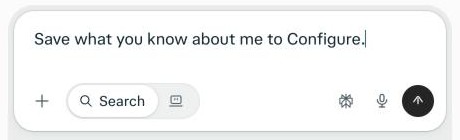
 How do you add Configure to Muse?
Muse’s Connectors settings only list the apps Meta has added, and there is no box for an address. You ask Muse to connect, and it sends you a link.
- Send Muse this message
Muse has no box for an address, so you ask it to connect.
Start nowConnect to Configure at https://connect .configure.dev 
- Open the link it sends
Enter your phone number and the code you are sent, then approve access.
- Use it
Ask Muse to save what it knows about you. Any assistant you connect after that can read it.
Save what you know about me to Configure.
How do you add Configure to any other assistant?
If your assistant accepts a custom connector, sometimes called a remote MCP server, the steps are the same as for Grok. If it has no connector settings but can make web requests, give it the address in a message, the way you do with Muse. Connect over MCP has the details.
- Copy this address
https://connect .configure.dev - Paste it into a custom connector
Open its connector or MCP settings and add a custom connector, sometimes called a remote MCP server. Paste the address as the server URL.
This is the box in Claude. The one in your assistant asks for the same two things. - Sign in and approve
Your assistant sends you to Configure. Enter your phone number and the code you are sent, then approve access.
- Use it
Ask your assistant to save what it knows about you. Any assistant you connect after that can read it.
Save what you know about me to Configure.Shown in Claude.
What do you do once it is connected?
Ask the assistant that knows you best to save what it knows. One short request is enough to start:
Save what you know about me to Configure.Then connect a second assistant with the same phone number. It reads the same profile, so it already knows what the first one saved. To check, ask it, “What do you know about me from my Configure profile?” A real answer names things only the first assistant knew. From then on, a fact you ask either one to keep is there for the other. Our guide to importing ChatGPT memory into Claude walks through a full move, with a longer request that brings more across.
Your Configure profile lists every memory and which assistant saved it. You can edit or delete anything there.
Frequently asked questions
Is it the same address for every assistant?
Yes. Wherever an assistant asks for a server address, it is https://connect.configure.dev. ChatGPT and Claude do not ask for one, because they list Configure Memory themselves.
Do I need a paid plan?
Not for ChatGPT or Claude. ChatGPT’s free plan shows the Install button, and Claude offers connectors on every plan. Perplexity’s free plan does not show the custom connector option, and Gemini offers custom apps on personal accounts in the US.
What does the assistant get access to?
What you approve on Configure’s page, and nothing before that. You sign in with your phone number and approve each assistant yourself.
Can I disconnect one later?
Yes. Remove Configure in the assistant’s connector settings, or disconnect the assistant from your Configure profile. Your memory stays in your profile for the assistants you keep.
Which assistant should I connect first?
The one that knows you best, since it has the most to save. If you are not sure, Which AI has the best memory? compares six of them.
Add a connect button to your product
The quickstart takes one page, end to end: a chip in your app, Configure's hosted page, and your agent reading the user's context on the first turn.
Read the quickstartAbout Configure. Configure is infrastructure for connecting agents, apps, and chats. People bring the context they already have, and the products they approve start from it. More about Configure.
More from the blog
All postsHow to import ChatGPT memory into Claude and Gemini
Connect Configure to both assistants, and what ChatGPT knows about you is there in Claude or Gemini. It works in every other direction too.

MemoryPlugin alternatives: MemoryPlugin vs Configure
MemoryPlugin adds a memory to the AI sites you visit. Configure connects your assistants, your apps and the products you sign up for.
Which AI has the best memory? Six assistants compared
Every assistant remembers you now, and each one remembers a different slice. We compare six of them, then show how to use them all with one memory.